
- 1. Dashboard (Overview Page)
- 2. Account & Profile (Account & Profile Management)
- 3. Contract/PO (Distributor's Contract / Purchase Order Management)
- 4. Partner List (Partner List)
- 5. Partner Contract/PO (Partner Contract/PO)
- 6. School Management (School Management)
- 7. License Pool (License Pool)
- 8. License Management (License Management)
- 9. Leanbot Management (Leanbot Management)
- 10. License Transaction (License Transaction History)
- 11. Reports (Statistical Reports)
Welcome to the detailed user guide for Distributor accounts on the Pythaverse platform. This guide is built based on the actual system interface to help you easily perform management operations.
—
1. Dashboard (Overview Page) #
Interface Description: The overview page displays quick statistics about the system, including:
- Total Enrolled Courses: The number of current courses.
- Active Users: The total number of active students and teachers.
- Active Schools: The number of active schools under the distribution scope.
- Total Orders: The number of successfully completed transaction orders.
Functional Buttons:
- Manage Students and Manage Teachers buttons (orange): Click to quickly redirect to the Student or Teacher list management page.
- Manage Schools button (orange): Click to go to the managed School management page.
- Manage Orders button (orange): Click to go to the product/service Order management page.
- Illustration:
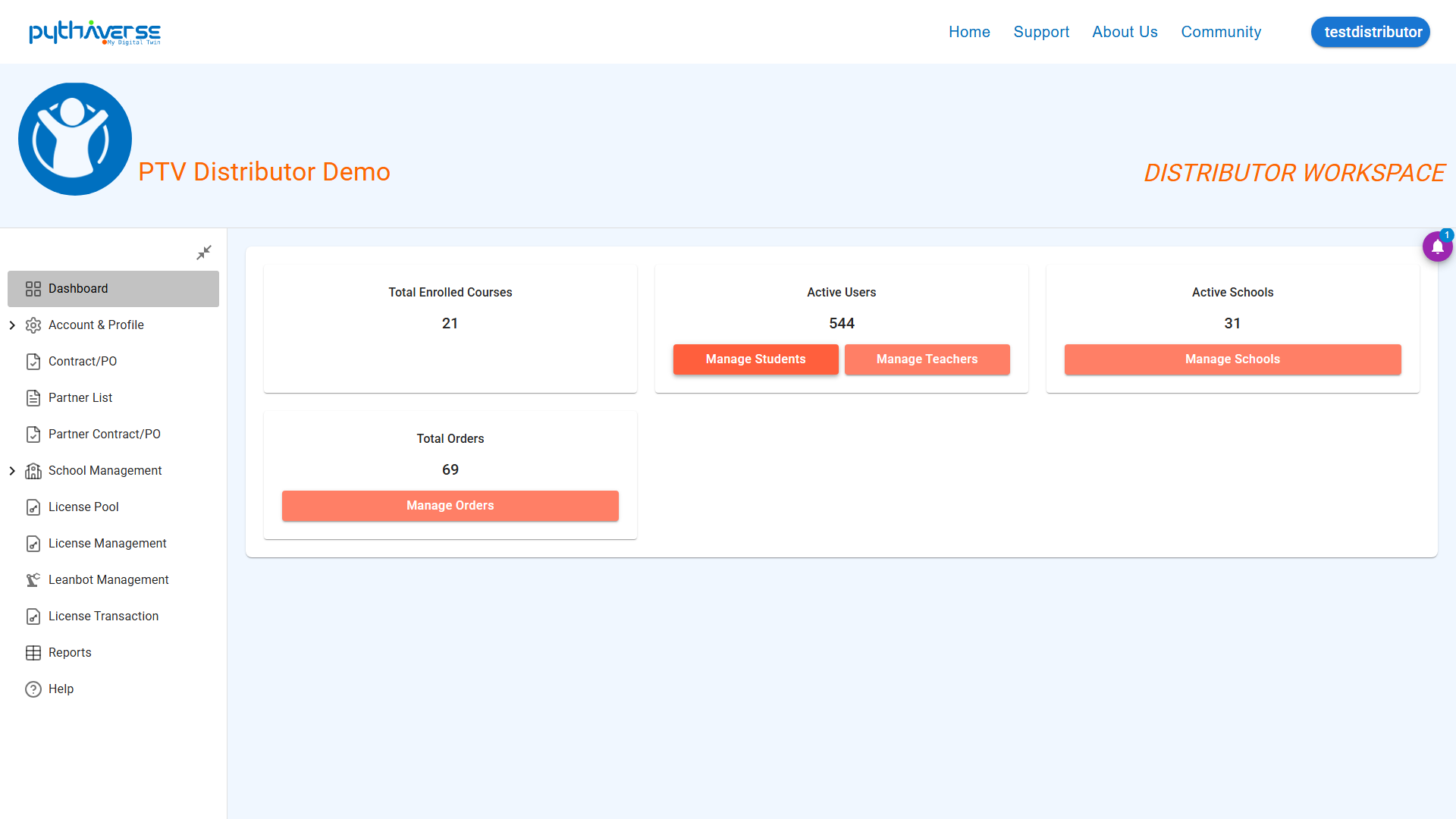
Image: Dashboard
—
2. Account & Profile (Account & Profile Management) #
This menu consists of 2 main features: Admin Account and Profile.
#### 2.1. Administrator Account (Administrator Account)
Interface Description: Displays the list of authorized administrator accounts for the distributor.
- Functional Buttons: Save information, change password, or update administrative permissions.
- Detailed Step-by-Step Instructions:
- Step 1: On the left menu bar, click Account & Profile -> select Admin Account.
- Step 2: View or edit your account information.
- Step 3: Click the Save/Update button to update the information on the system.
Illustration:
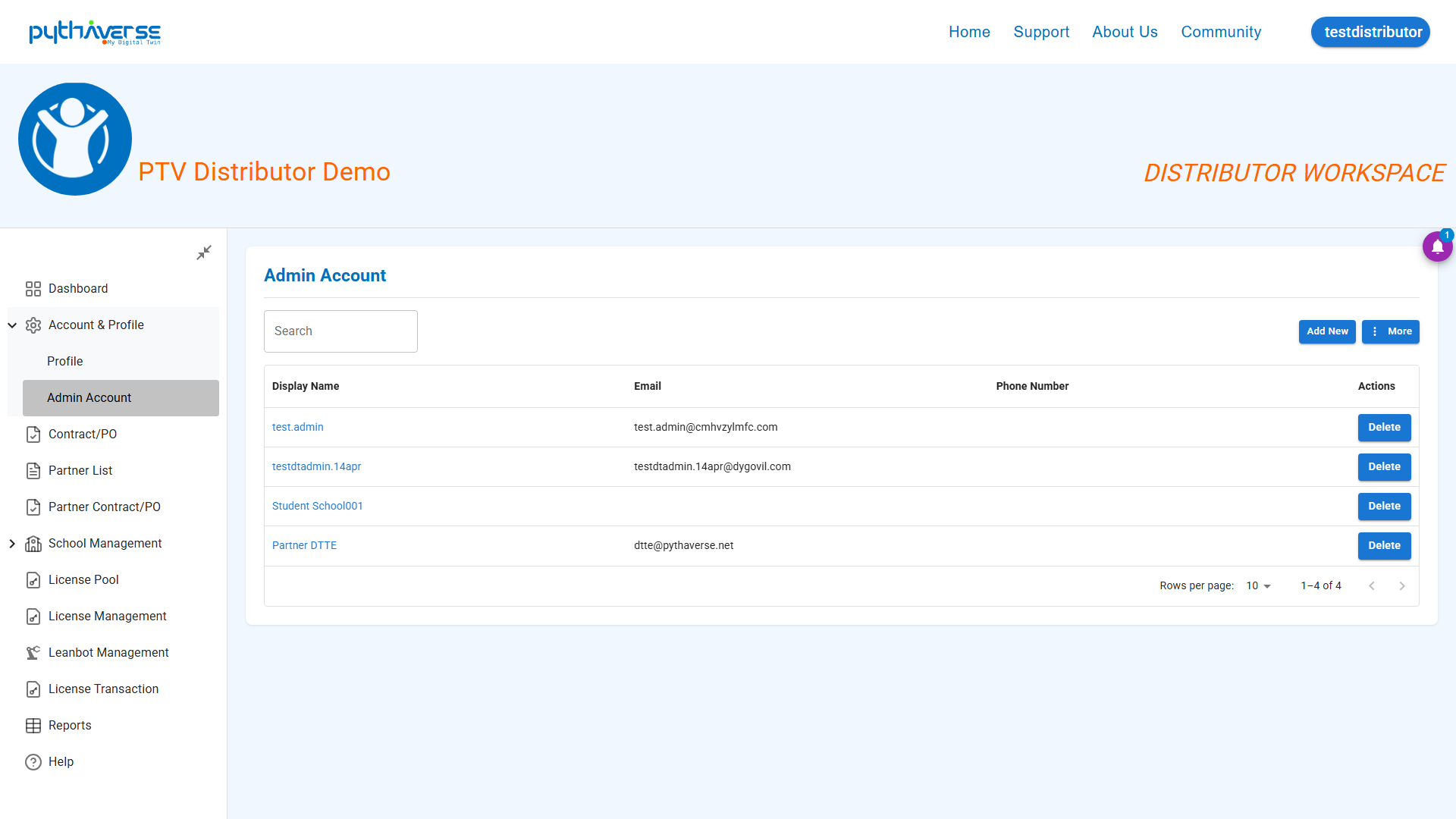
Image: Admin Account
#### 2.2. Profile (Personal Profile)
- Interface Description: Displays basic personal information of the Distributor (Full name, email, avatar, phone number…).
Functional Buttons: Edit Profile button (Edit information), Change Password (Change password).
- Illustration:
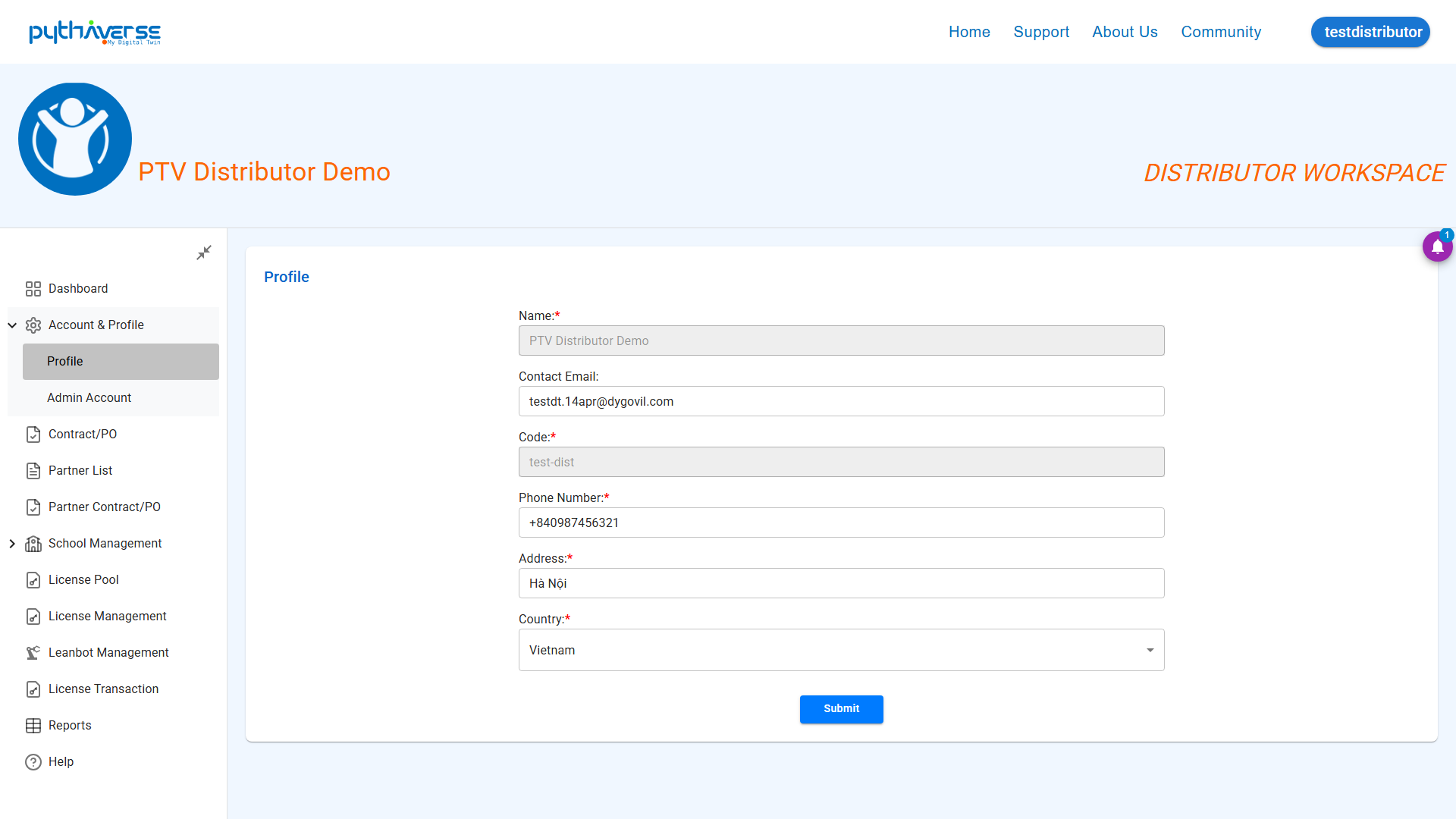
Image: Profile
—
3. Contract/PO (Distributor’s Contract / Purchase Order Management) #
Interface Description: List of contracts or Purchase Orders (PO) between the Distributor and the Pythaverse system.
Functional Buttons: Create new PO button, Search, Filter contract status, and view details button.
- Illustration:
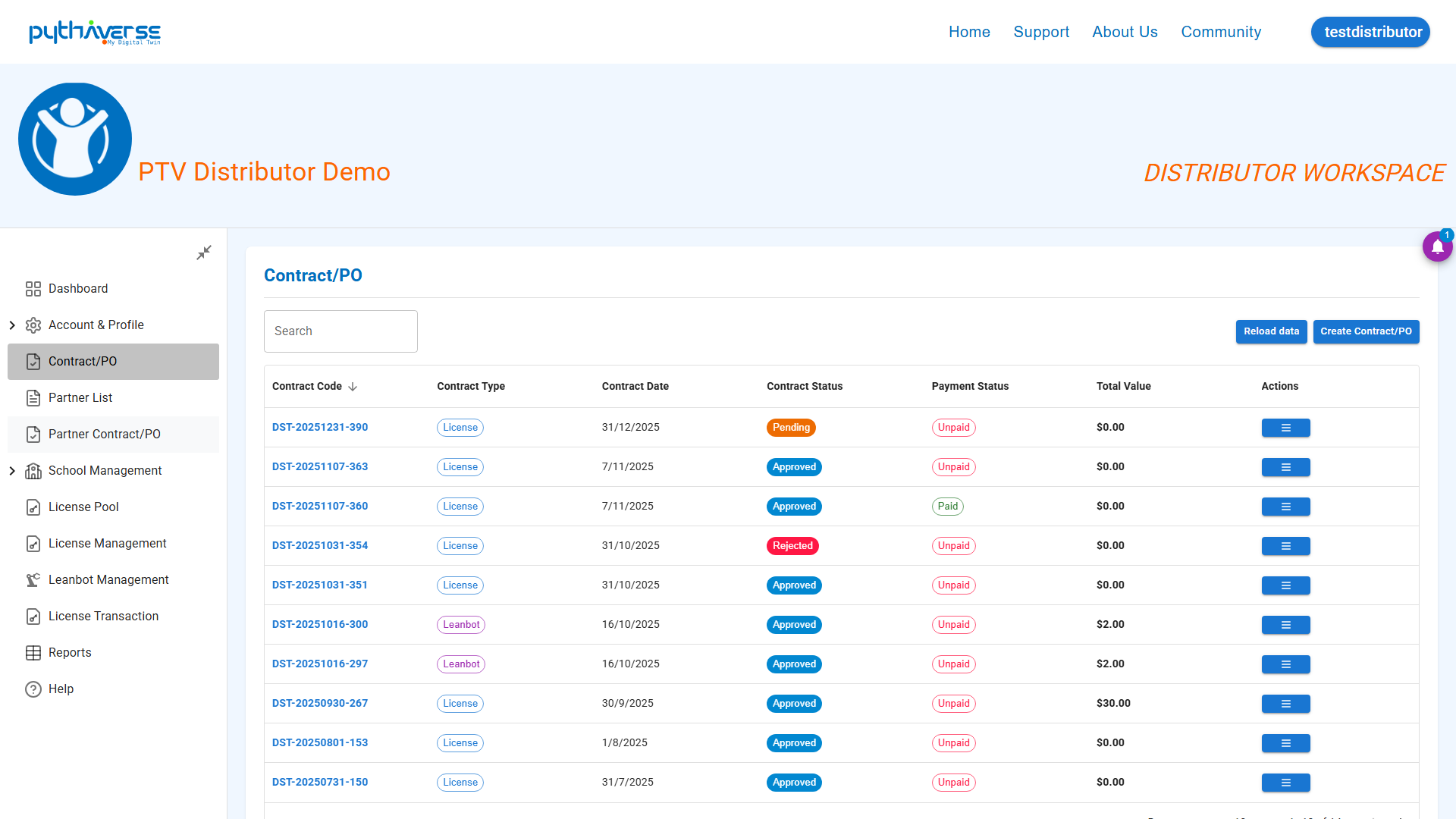
Image: Contract/PO
—
4. Partner List (Partner List) #
Interface Description: List of all lower-level partners under the management of the Distributor.
Functional Buttons: Add Partner button (Add a new partner), Export data to Excel button, and view/edit partner information buttons.
- Illustration:
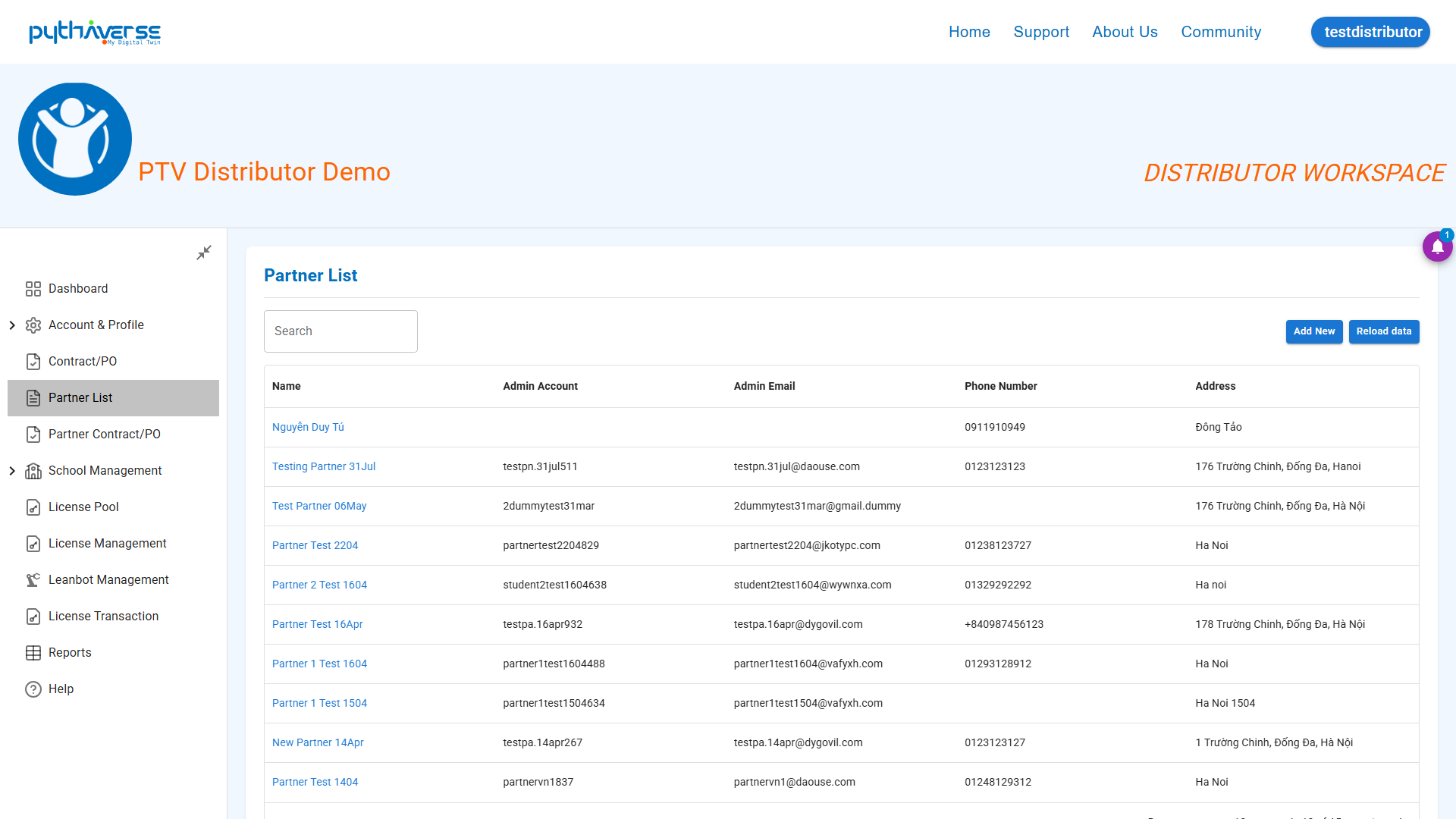
Image: Partner List
—
5. Partner Contract/PO (Partner Contract/PO) #
Interface Description: Manage transactions, contracts, and POs signed between the Distributor and affiliated Partners.
Functional Buttons: View contract details button (the Distributor can approve after accessing contract details), create new PO for partner button, and payment/handover status filter.
- Illustration:
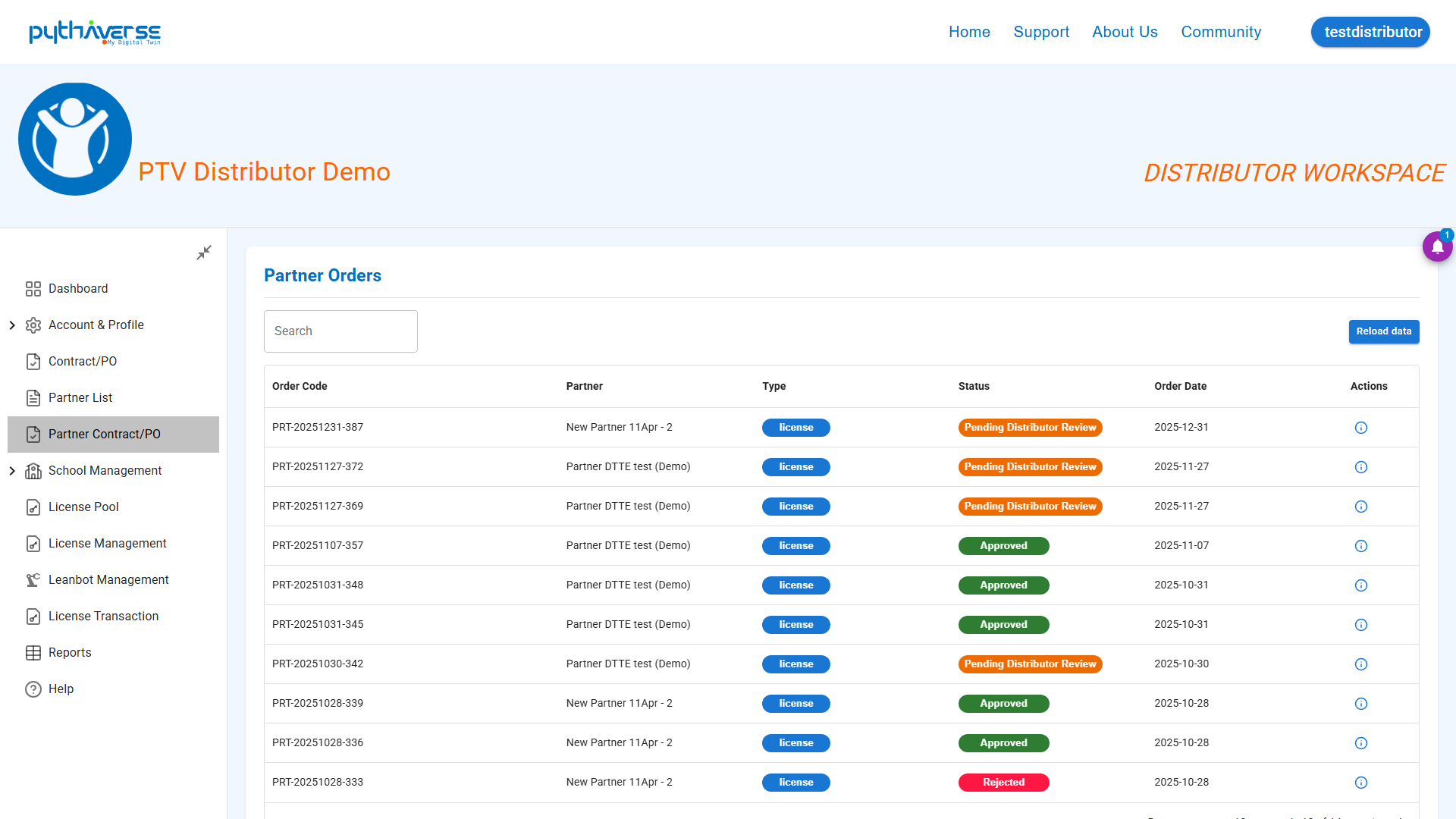
Image: Partner Contract/PO
—
6. School Management (School Management) #
This group of features includes: School List, School Contract/PO, Account Creation, Teacher List, Student List.
#### 6.1. School List (School List)
- Interface Description: Manage the list of registered schools within the distribution zone.
- Functional Buttons: Add School button (Add a school), search school button, and edit school status button.
- Illustration:
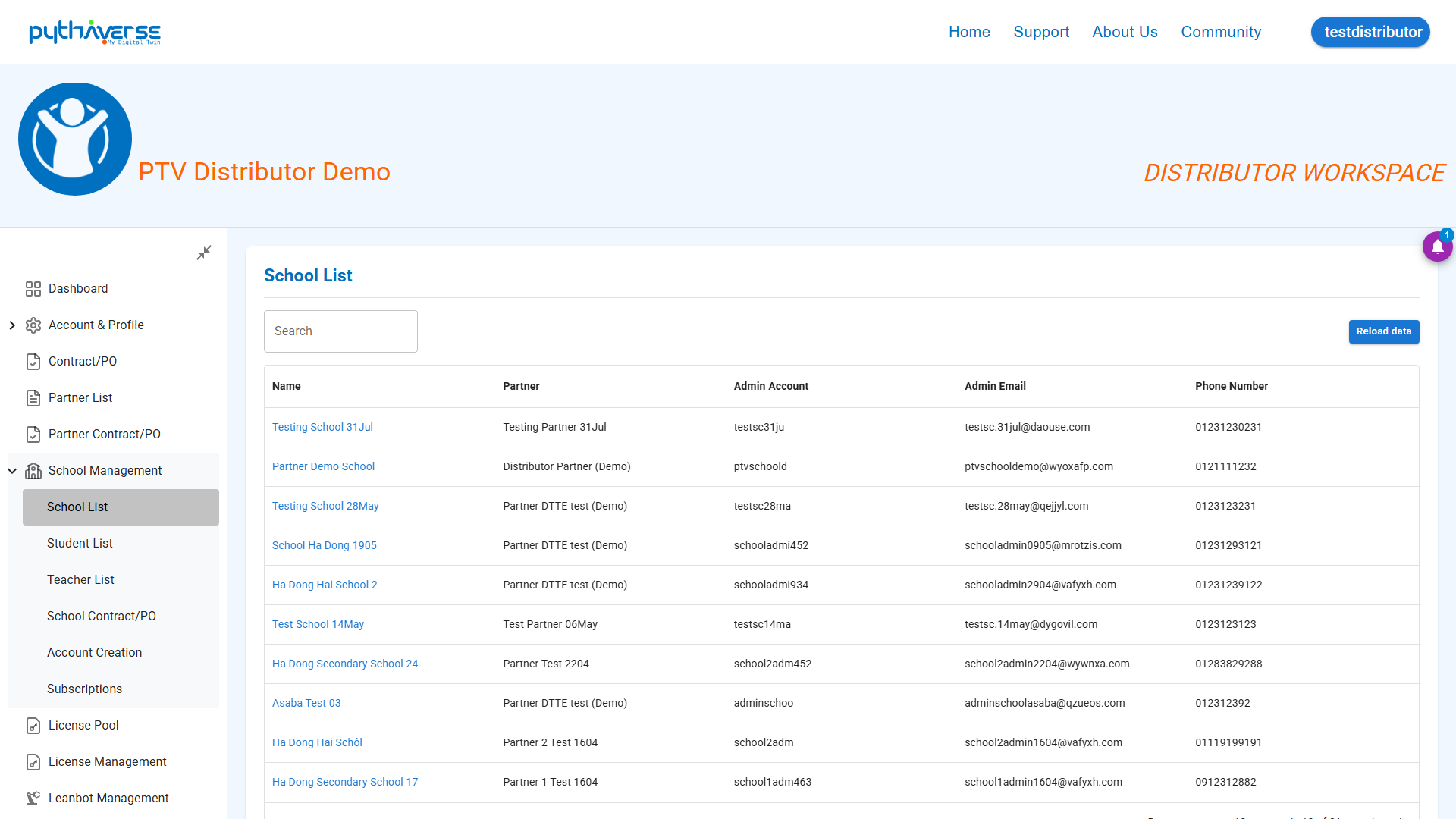
Image: School List
#### 6.2. Student List (Student List)
- Interface Description: Manage affiliated student information.
- Functional Buttons: Search for students by school/class, unlock account, and update class.
- Illustration:
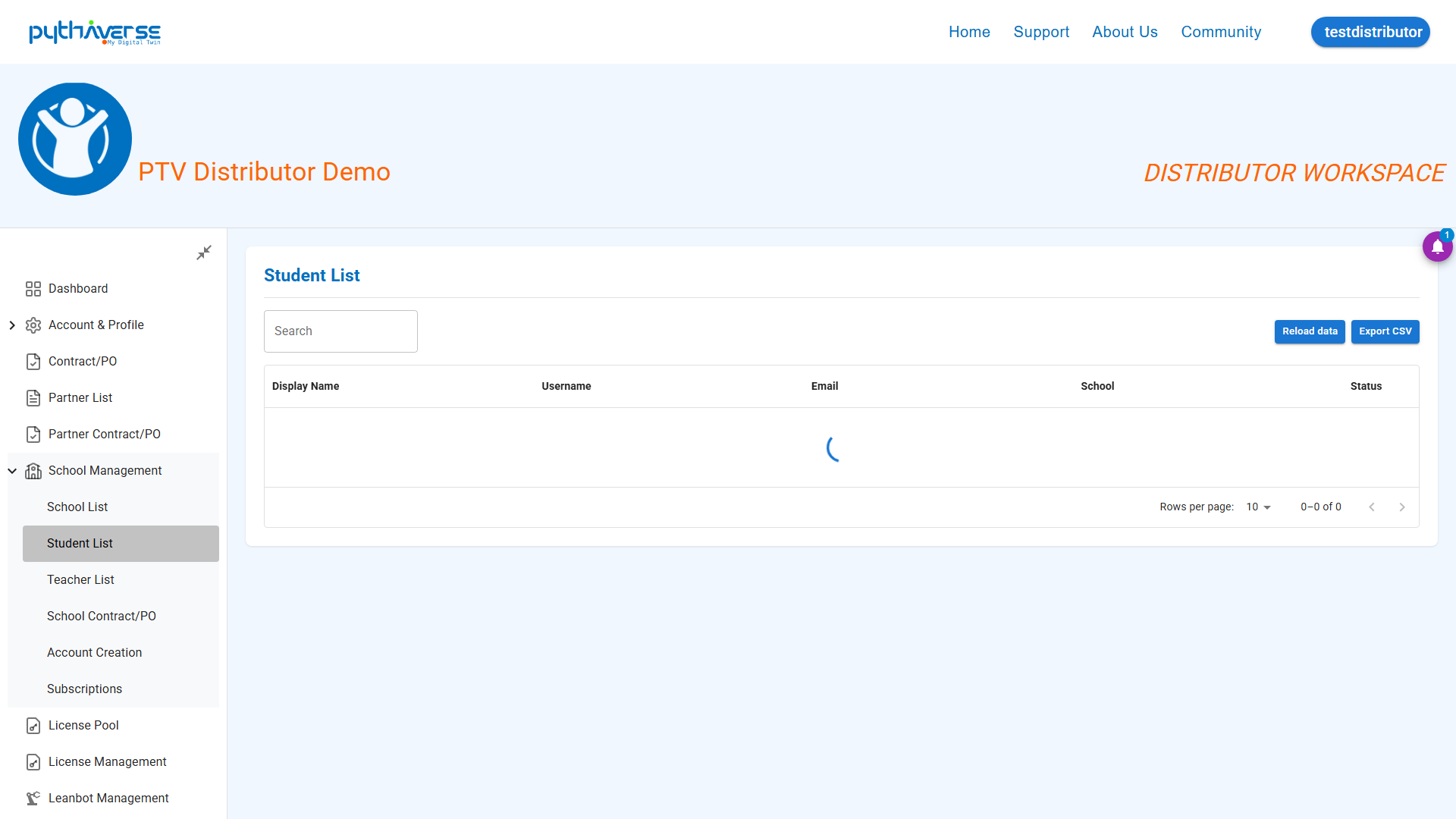
Image: Student List
#### 6.3. Teacher List (Affiliated Teacher List)
- Interface Description: Manage information for all teachers belonging to schools within the distribution scope.
- Functional Buttons: Update teacher permissions button, and export list report.
- Illustration:
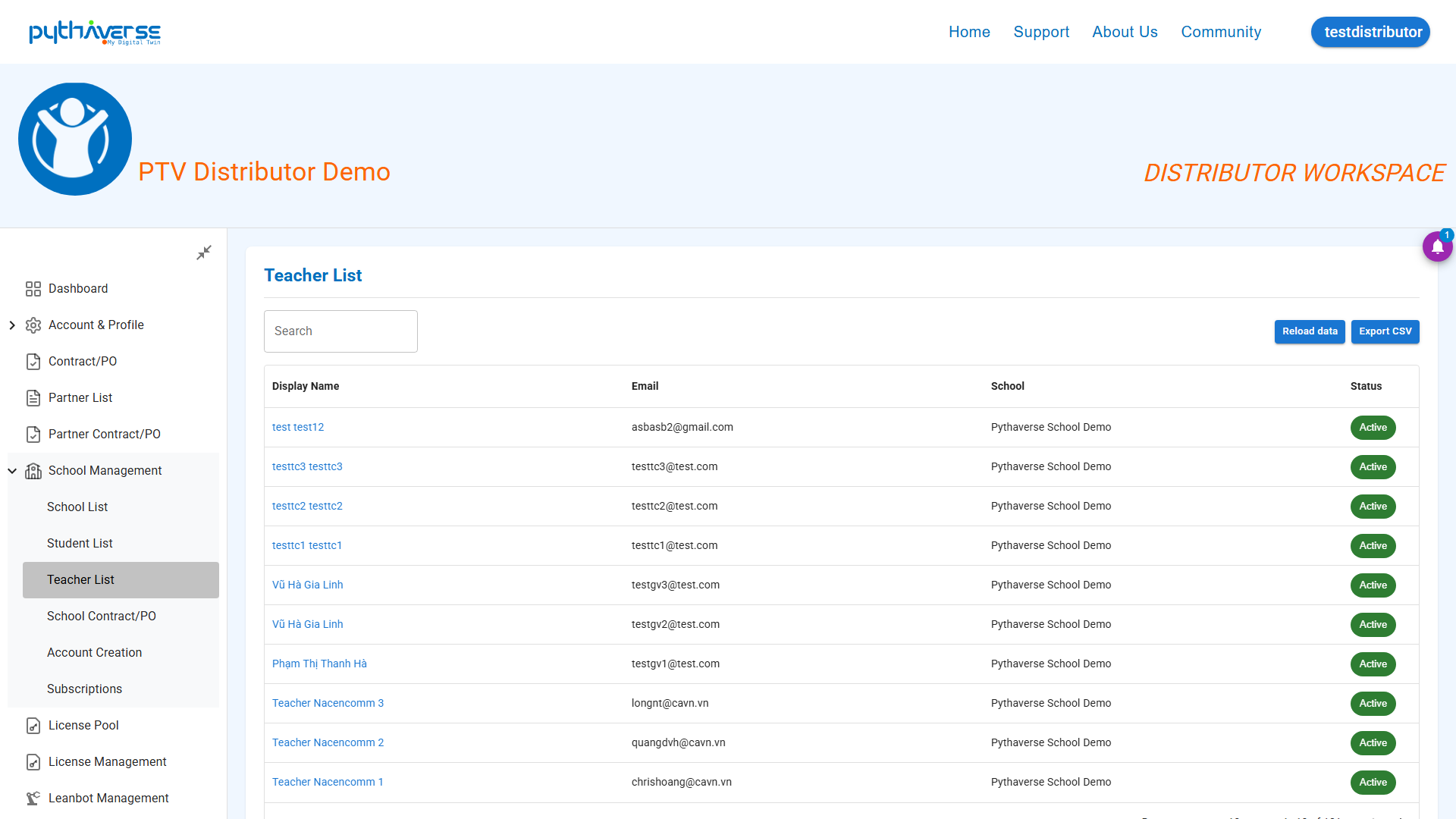
Image: Teacher List
#### 6.4. School Contract/PO (School Contract/PO)
- Interface Description: Manage license contracts signed directly with schools.
- Functional Buttons: Create new contract button, and view package expiration date for schools.
- Illustration:
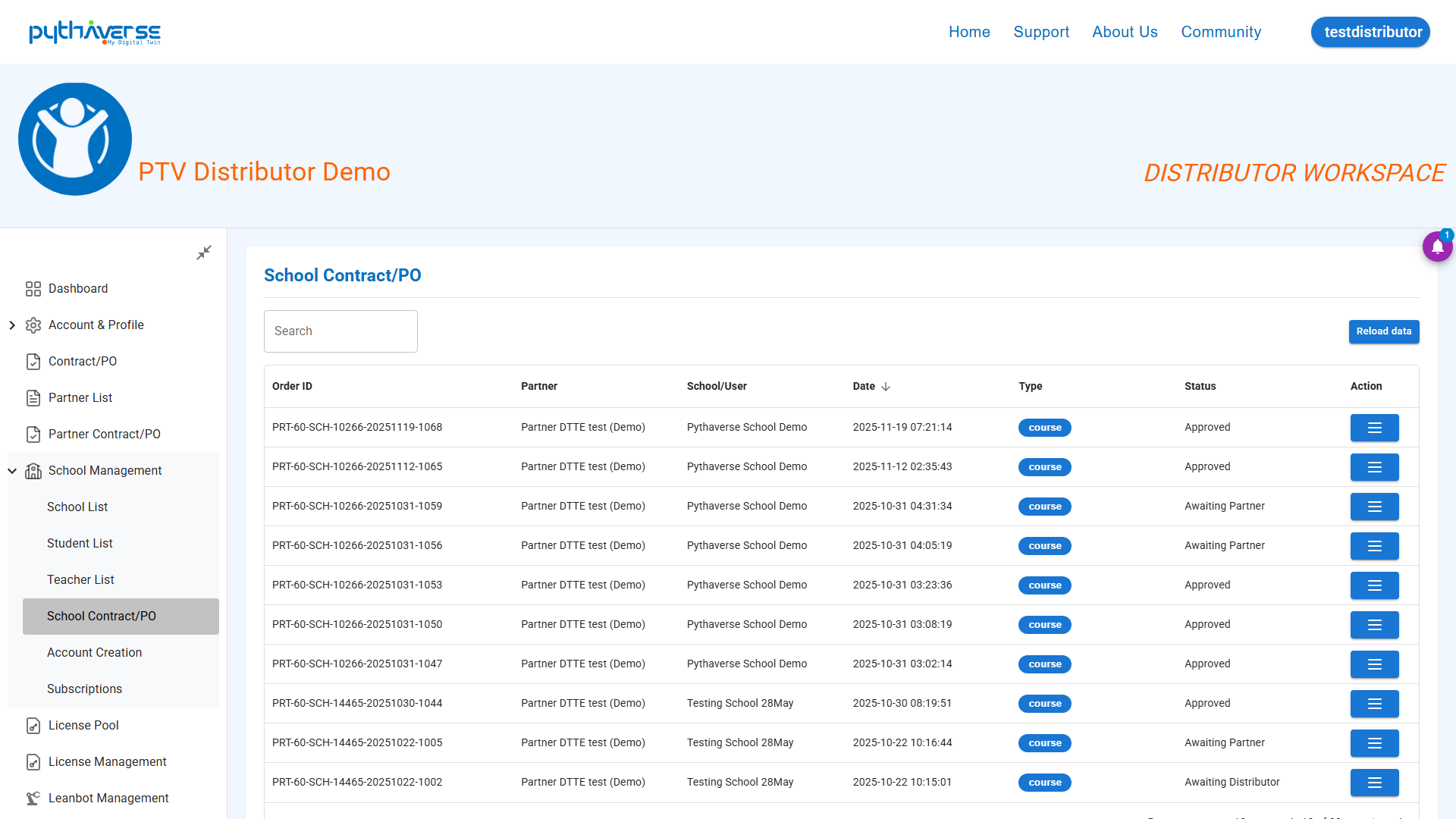
Image: School Contract/PO
#### 6.5. Account Creation (Automated Bulk Account Creation)
- Interface Description: A tool for bulk account creation for school target groups (School Admin, teachers, students).
- Functional Buttons: Download Excel template button, and Upload Excel data button to automatically create accounts.
- Illustration:
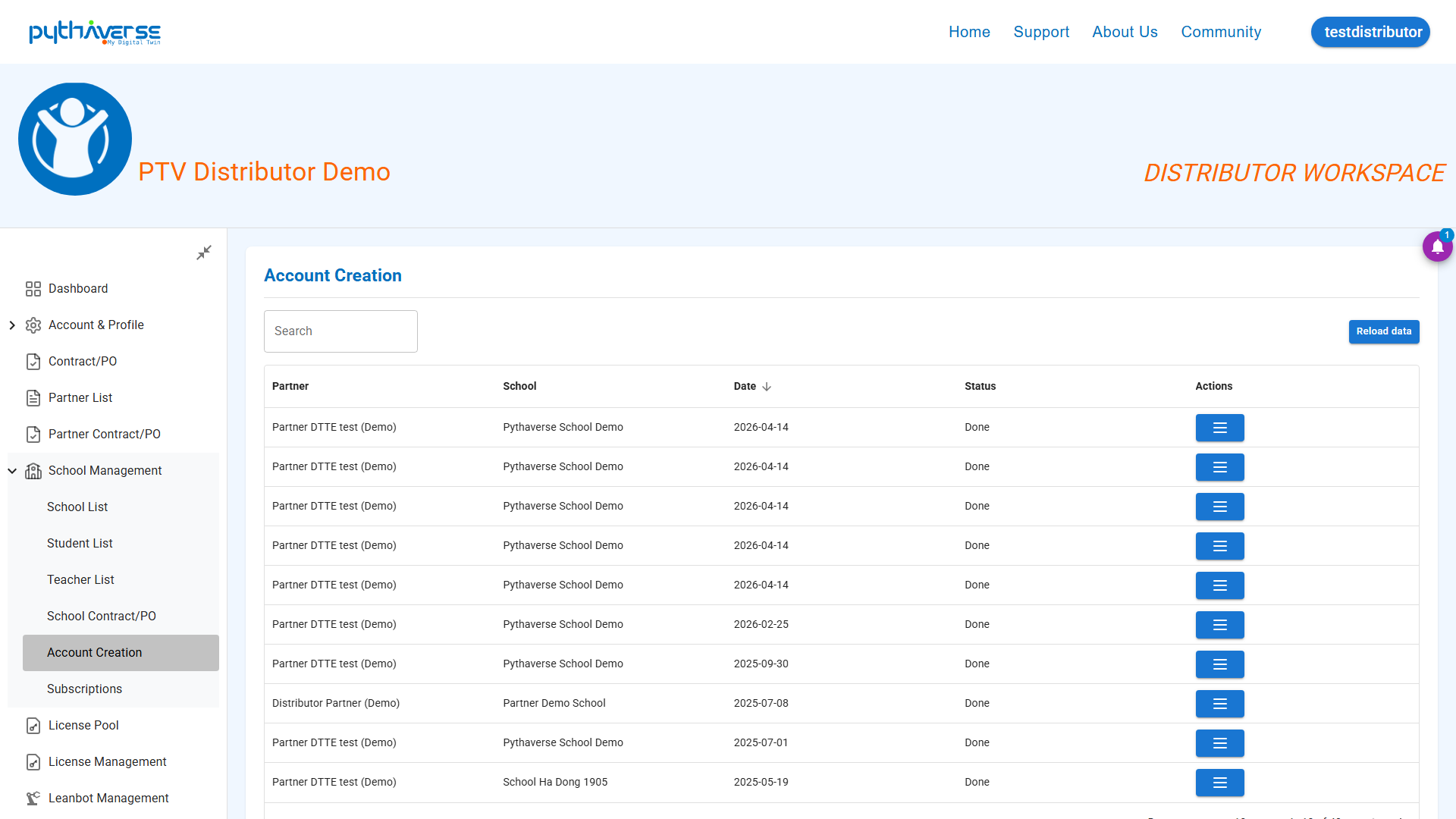
Image: Account Creation
#### 6.6. Subscription (License Usage Status)
- Interface Description: The interface displays school information along with their corresponding courses, number of participating students, and start/end dates of the courses.
- Illustration:
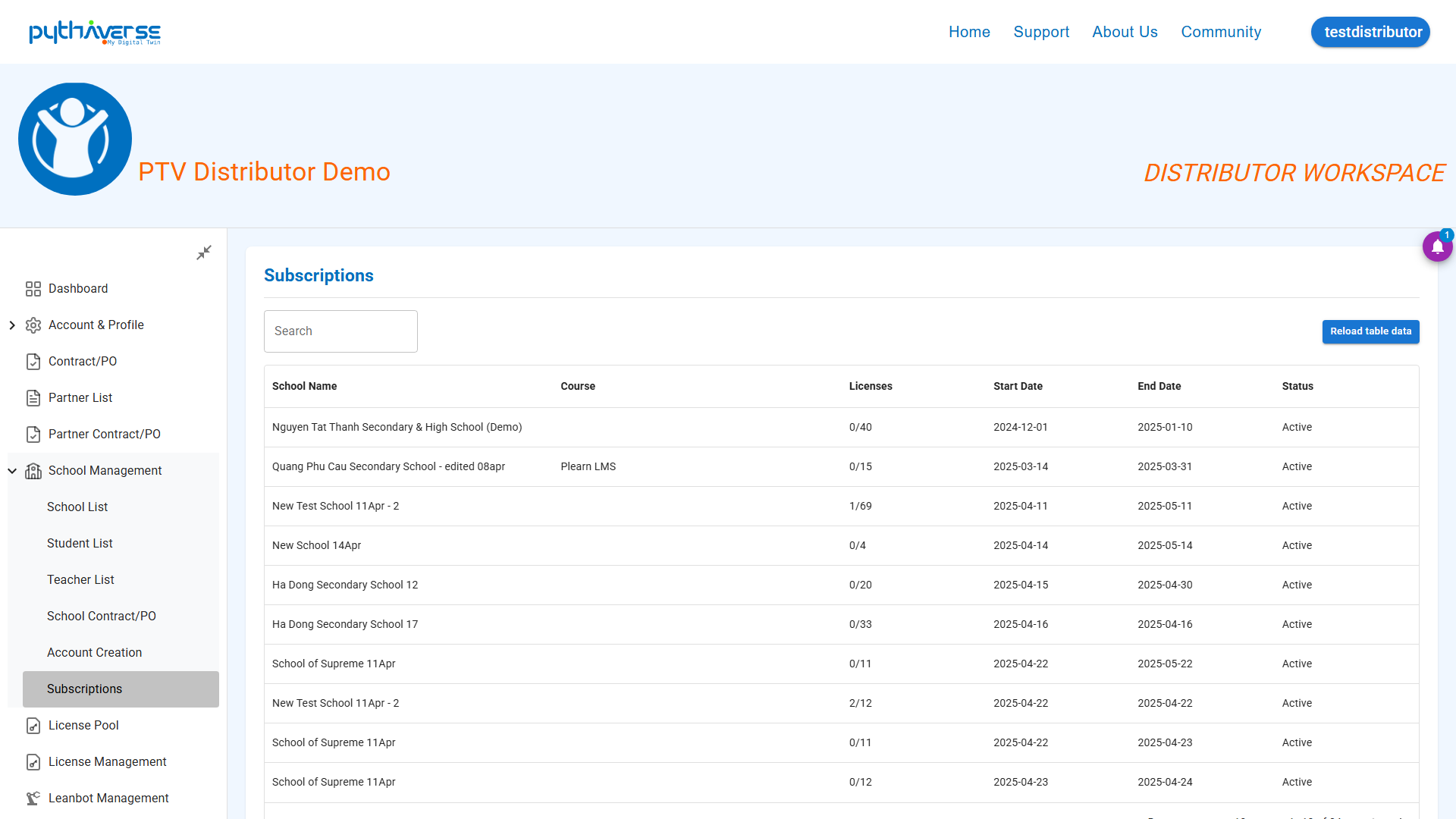
Image: Subscriptions
—
7. License Pool (License Pool) #
Interface Description: The pool displaying the total quantity of Licenses (course/platform licenses) owned by the Distributor. It clearly shows the Used, Available, and Total quantities.
- License Categories: Statistics on the quantity of Licenses currently owned and ready for allocation (Available) to Partners in need, as well as the quantity of Licenses already distributed (Used) to affiliated schools.
- Leanbot Products: Statistics on the quantity of Leanbots and learning tools currently available for distribution and the quantity of Leanbots sent to Partners and Schools.
- License Pool Usage Overview: The Distributor can track detailed information about available and used Course Access Licenses for each course category.
- License Courses Breakdown: Statistics on the quantity of Licenses used by Partners or schools for their corresponding courses. (Note: The entity name “Pool License” actually represents the quantity of Licenses ready for distribution to Partners).
- Leanbot Products Inventory: Statistics on the quantity of Leanbot robots and learning tools used by Partners or Schools. (Note: The entity name “Pool License” actually represents the quantity of Leanbot robots and learning tools ready for distribution to the Distributor’s schools).
- Illustration:
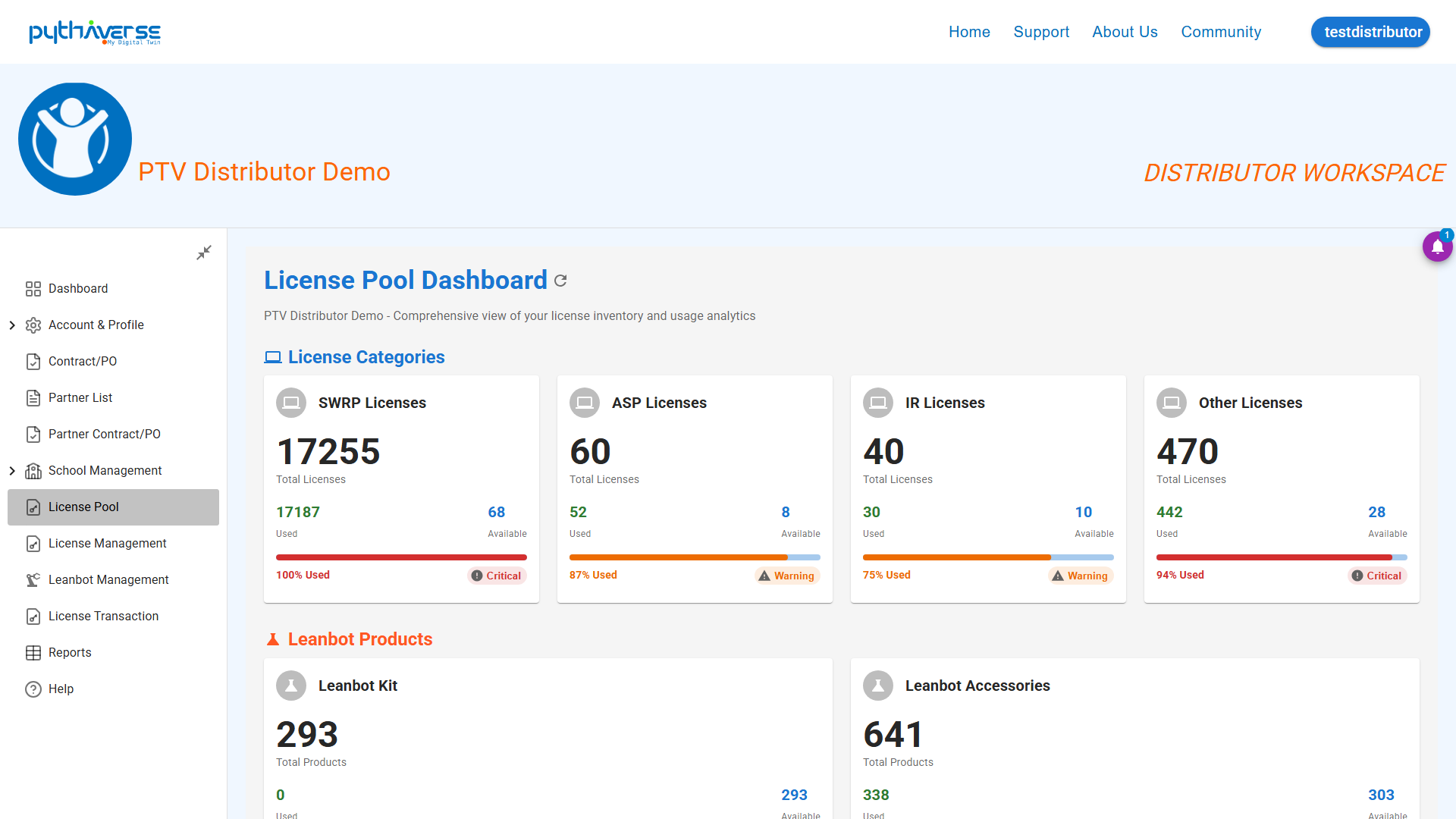
Image: License Pool
—
8. License Management (License Management) #
Interface Description: Access detailed information on distributed course access licenses (both used and unused by the distributed Partners or Schools) and the remaining quantity in the Distributor’s repository.
*Note:* Licenses associated with the entity name “Pool License” actually represent the quantity of Course Access Licenses in the Distributor’s repository, ready for distribution to Partners.
- All licenses: List of information for courses currently being used at schools and in the Partner’s repository.
- School Usage: List of schools along with the number of distributed licenses, the usage rate, and the last access time of users in those schools, as well as those of the Partners’ repositories.
- Summary: List of active and used courses across schools and available courses in the Partner’s pool.
- Illustration:
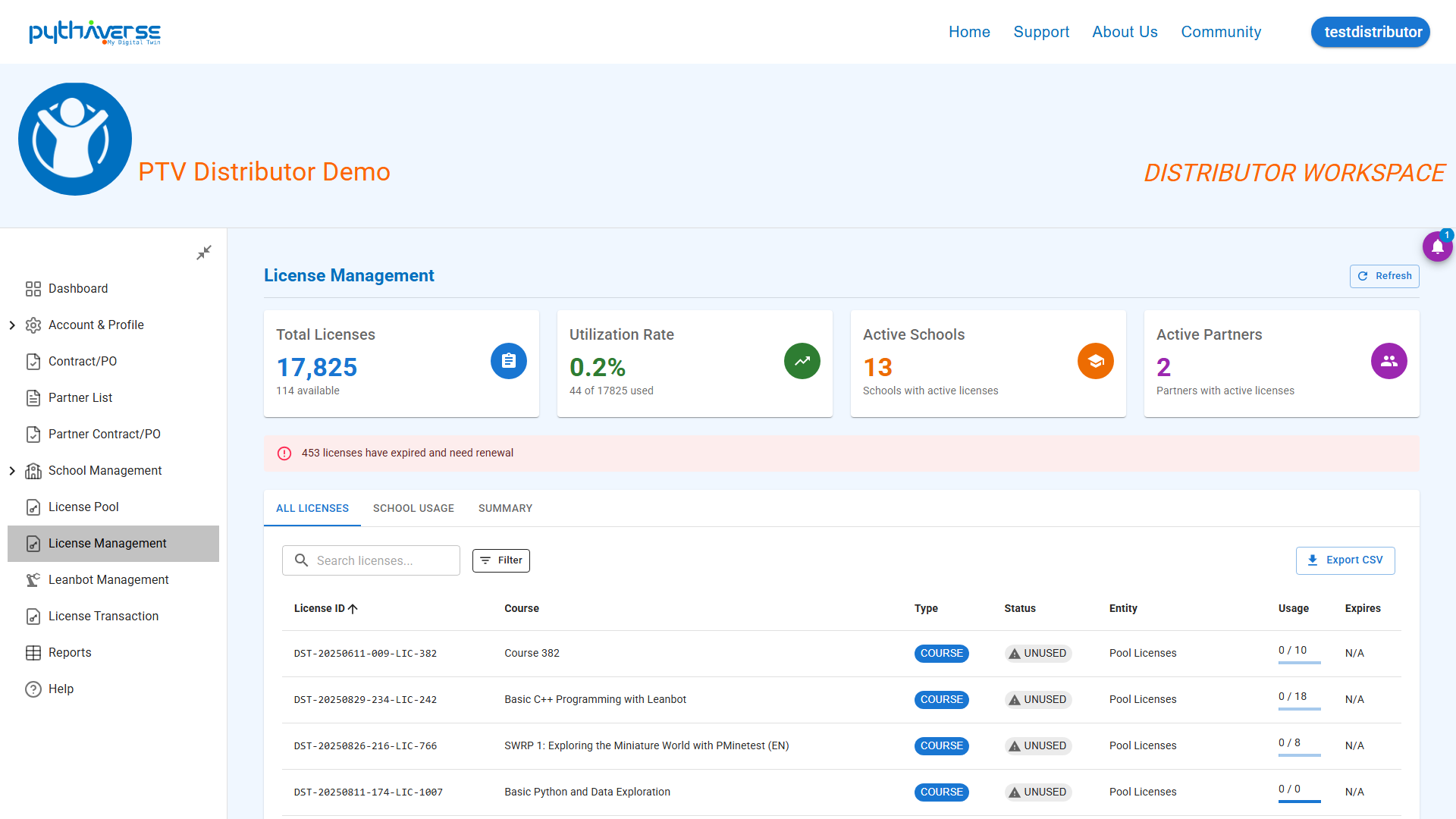
Image: License Management
—
9. Leanbot Management (Leanbot Management) #
Interface Description: Access detailed information on the quantity of distributed Leanbot robots and practical tools, as well as the remaining quantity in the Distributor’s repository.
- Illustration:
Image: Leanbot Management
—
10. License Transaction (License Transaction History) #
- Interface Description: A log recording all transactions of license transfers and allocations on the system.
- Illustration:
Image: License Transaction
—
11. Reports (Statistical Reports) #
- Interface Description: Charts and data tables reporting revenue, distribution volume, and account activation rates for each school.
- Illustration:
Image: Reports


