
USER GUIDE FOR SCHOOLS (SCHOOL WORKSPACE) #
This document provides detailed instructions on the administrative functions for School management accounts on the Pythaverse system. With a school account, you have full authority to manage classes, assign teachers and students, manage course licenses, and organize competitions.
—
1. Dashboard (Overview Page) #
Interface Description: The Dashboard interface displays the school’s summary report:
- Total Licenses: The number of course access licenses owned by the school for registered courses.
- Ongoing Courses: The number of courses currently being taught at the school.
- Active Classes: The number of classes currently being taught.
- Total Enrolled Courses: The total number of courses the school is participating in teaching.
- Active Teachers: The number of active teacher accounts (participating in courses).
- Enrolled Students: The number of student accounts enrolled in courses.
- Illustration:
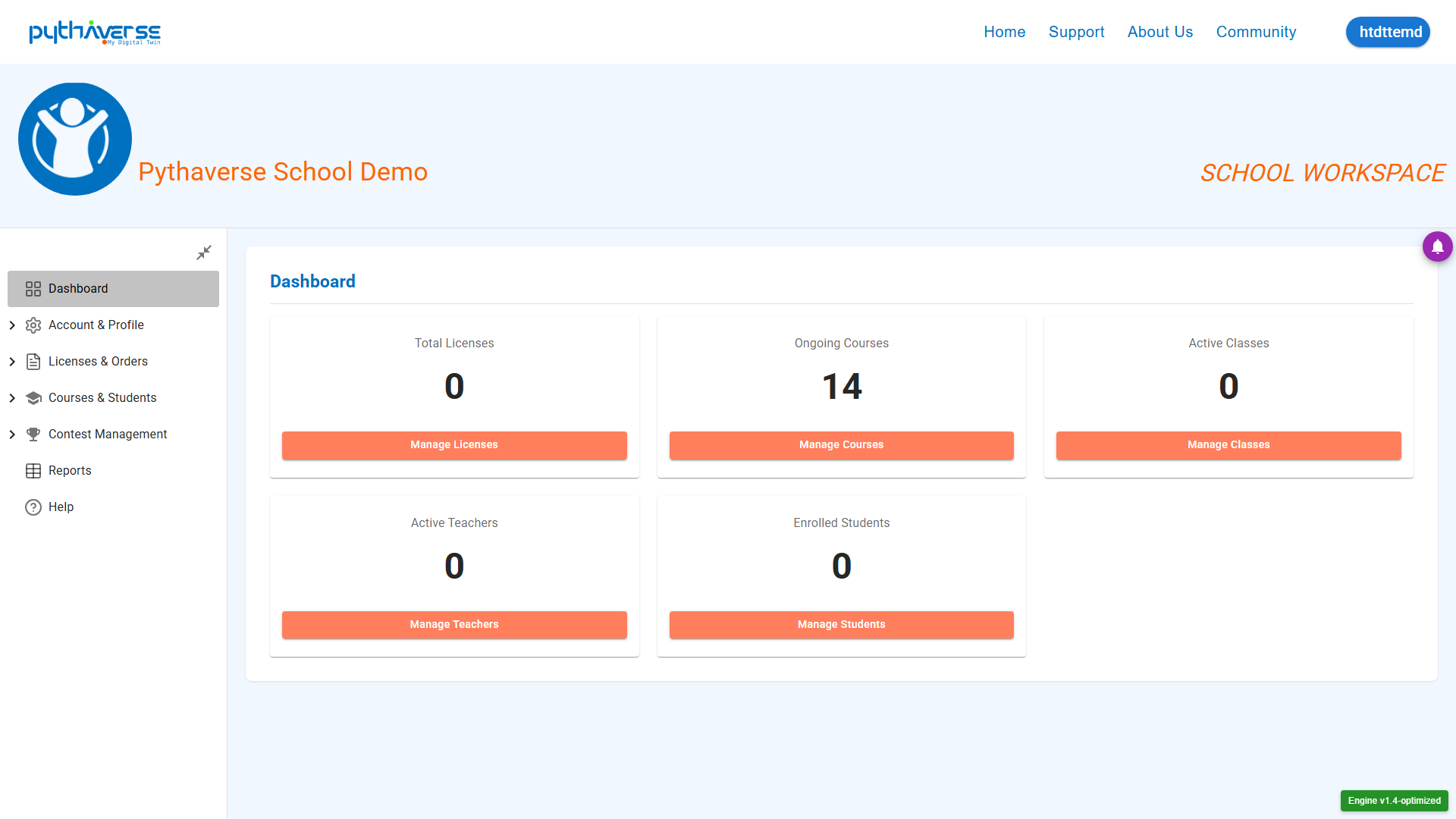
Hình ảnh: Dashboard
—
2. Account & Profile (Personal Profile) #
Includes account configuration information for the school administrator: Admin Account and Profile.
- Profile: Access to manage school information such as Email, Display Name, Address, etc.
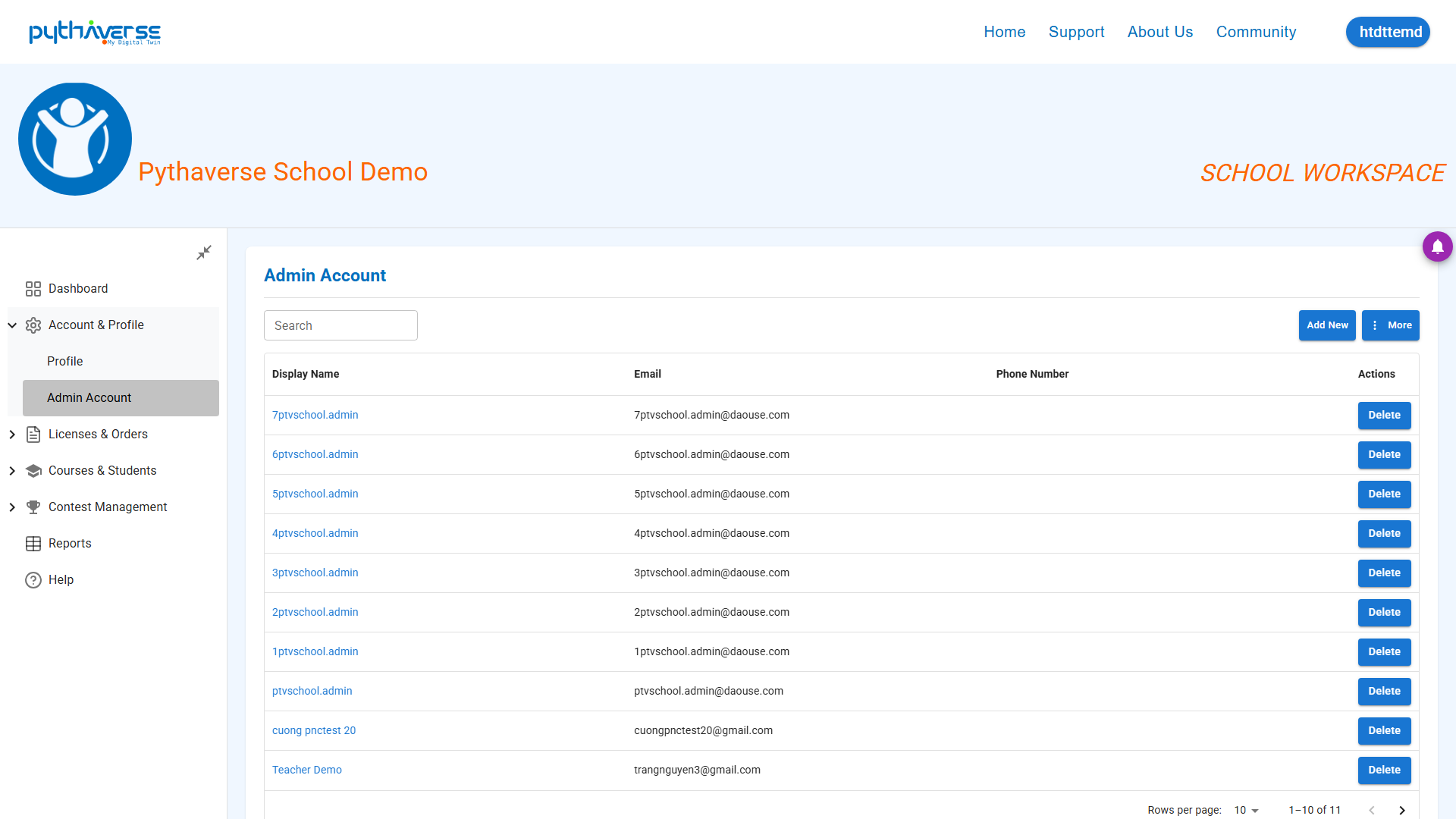
Hình ảnh: Admin Account
- Admin Account: Manage and assign permissions for school administrator accounts.
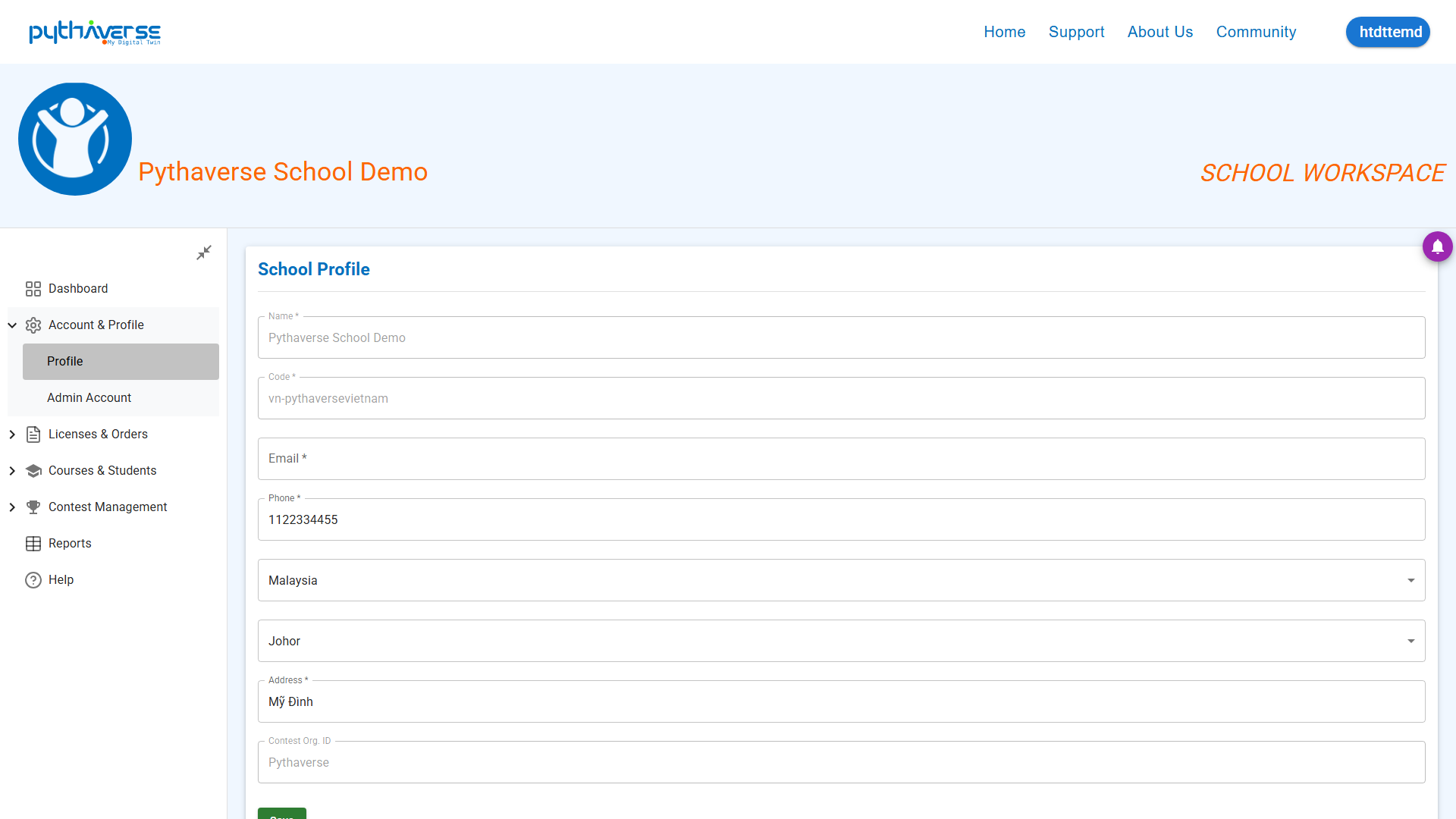
Hình ảnh: Profile
—
3. Licenses & Orders (Course Licenses & Orders) #
Interface Description: List of course licenses owned by the school along with purchase history.
- Orders: Track the status of Course Access License orders as well as Leanbot robot orders.
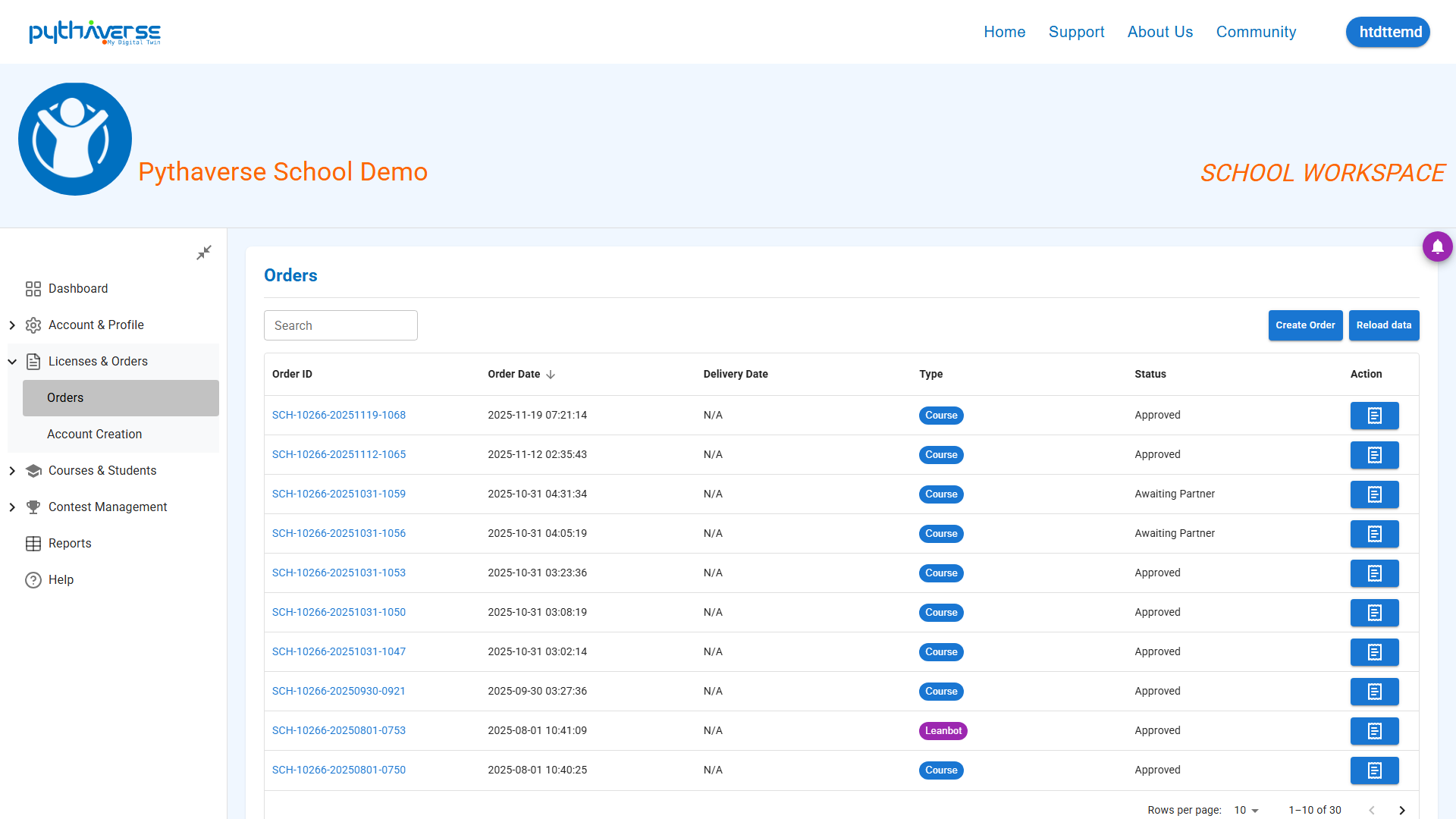
Hình ảnh: Orders
- Account Creation: The school can create student/teacher accounts in bulk by downloading a .xlsx file, filling in the user information in the file, and then importing it back into the system.
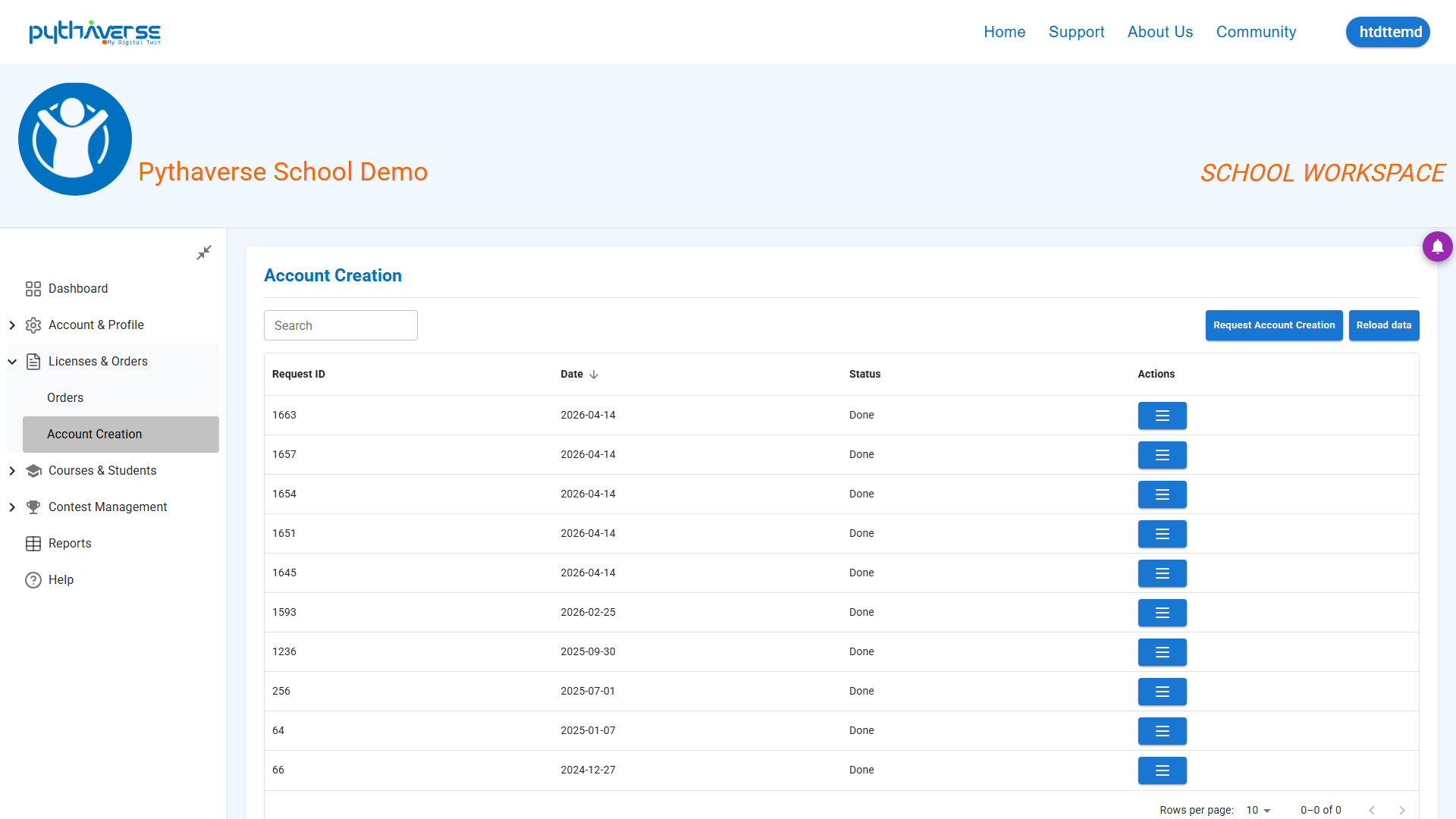
Hình ảnh: Account Creation
—
4. Courses & Students (Management of Ongoing Courses and Teachers, Students) #
Interface Description: The list of all students and teachers registered under the school, along with the list of courses.
#### 4.1 Course Management: The place to manage the school’s STEM/Leanbot courses and distribute them to each student and teacher.
- Functional Buttons:
- Click on the course name to access the list of users participating in the course.
- (After clicking on the course name) The school can assign users to the course using the “Enroll Users” function. Here, the school is required to create a Group (corresponding to the Class/Study Group name), select the user role, and then click Add to assign users to the course (please pay attention to the remaining number of course access licenses).
- Export the list of course participants with basic information such as Display Name, role, joining date, etc.
Hình ảnh: Course Management
#### 4.2 Teacher Management: Manage the list of all teachers registered under the school.
- Functional Buttons:
- Click on a teacher’s name to access their basic information.
- Add Teacher button (Add a new teacher).
- Edit / Delete buttons: Edit information or delete teachers from the school system.
Hình ảnh: Teacher Management
#### 4.3 Student Management (Student Management): Manage the school-wide list of students, displaying names, student IDs, classes, and active statuses.
- Functional Buttons:
- Add Student button (Add a new student).
- Import Excel button: Support adding students in bulk using an Excel file.
Hình ảnh: Student Management
—
5. Contest Management & Contests (Contest Management) #
#### 5.1 Contests: Tool for managing and organizing robot and STEM competitions for students within the school or inter-school.
Functional Buttons:
- Unpublish/Publish button (Publish contest – Display the contest on the website)
- Disable/Enable button (Disable/Enable contest – Status allowing/disallowing contest registration)
- *Note*: A contest must be both Enabled (to display the contest) and Published to appear on the aggregated contest website.
Hình ảnh: Contests
#### 5.2 Organizer: Manage teachers assigned to organize competitions:
Functional Buttons:
- Unpublish/Publish button (Publish contest – Display the contest on the website)
- Disable/Enable button (Disable/Enable contest – Status allowing/disallowing contest registration)
- *Note*: A contest must be both Enabled (to display the contest) and Published to appear on the aggregated contest website.
Hình ảnh: Organizers
—
6. Reports (Learning Reports) #
Interface Description: Statistics of results, learning progress of classes, and student academic rankings.
Hình ảnh: Reports
- Overview report: Helps the school track the access and learning logs of all users.
Hình ảnh: Overview Report
- Summary report: Allows the school to quickly monitor course information, such as the number of ongoing courses, number of student users, and number of teacher users.
Hình ảnh: Summary Report


